
Why Is My Flashlight Not Working? Android & iPhone 2026
Why is my flashlight not working is one of the most common phone complaints people search for right before they get stuck in the dark.
It happens on both Android and iPhone, often without any warning. One minute the torch works fine, and the next the icon is greyed out or completely unresponsive.
The good news is that most flashlight issues are software related, not hardware failures. A background app, a battery saving mode, or a temporary glitch is usually the real culprit.
Quick Overview: Common Causes At A Glance
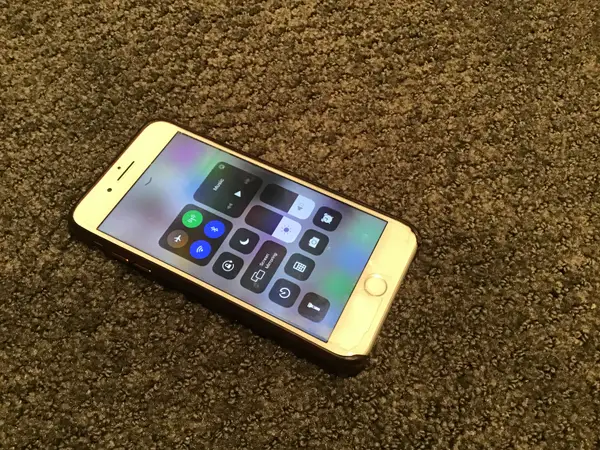
Before diving into detailed fixes, it helps to see the full picture in one place. The table below summarizes the most frequent reasons phones report a flashlight not working.
| Cause | Common On | Quick Fix |
|---|---|---|
| Camera app running in background | Android & iPhone | Close the camera app fully |
| Low Power Mode / Battery Saver | Android & iPhone | Turn off power saving mode |
| Overheating | Android & iPhone | Let the phone cool down |
| Low battery percentage | Android & iPhone | Charge the phone briefly |
| Outdated OS version | Android & iPhone | Update software |
| Case blocking the LED | Android & iPhone | Remove the case |
| Third-party app conflict | Android | Uninstall or update the app |
| Hardware damage | Android & iPhone | Visit a repair shop |
This table gives a snapshot, but each cause deserves a closer look so you know exactly which one applies to your situation.
Why Is My Flashlight Not Working On iPhone
iPhones share the flashlight LED with the camera flash. That single detail explains most of the problems people run into.
Camera App Is Open In The Background
If Camera app is open, even minimized, the system may lock the LED for photography use. Force closing the app usually restores flashlight access instantly.
Low Power Mode Is Turned On
Low Power Mode disables several features to save battery, and the flashlight is sometimes one of them. Turning it off from Settings > Battery brings the torch back.
iPhone Is Overheating
When an iPhone gets too hot, iOS automatically disables power-hungry features including the flash. A short cooldown period in a shaded spot solves this quickly.
Outdated iOS Version
Older iOS builds sometimes contain bugs that affect hardware controls like the torch. Updating to the latest version through Settings > General > Software Update often resolves it.
Random Software Glitch
Temporary glitches can freeze the flashlight toggle without any clear cause. A simple restart clears background processes and usually fixes this instantly.
Case, Lens Protector, Or Film Blocking The LED
Thick cases, magnetic accessories, or a poorly fitted lens protector can physically cover the flash. Removing the case is an easy way to rule this out.
Hardware Damage From A Drop Or Water Exposure
If the LED itself is cracked or the flex cable is damaged, no software fix will help. This usually requires a visit to an authorized service center.
Why Is My Flashlight Not Working On Android
Android phones behave a little differently because manufacturers customize the camera and torch software, but the root causes are similar.
Battery Saver Mode Is Active
Battery Saver restricts background features on many Android skins, and flashlight access is often included. Disabling it from the Battery settings usually restores the torch immediately.
A Conflicting Third-Party Flashlight App
Downloaded flashlight apps sometimes fight with the phone’s native torch controls for camera access. Uninstalling or updating the third-party app frequently fixes the conflict.
Corrupted Camera App Data
Cached data in the Camera app can interfere with flashlight hardware calls. Clearing the app’s storage from Settings > Apps often resolves persistent issues.
Low Battery Percentage
Many Android phones disable the flashlight automatically once the battery drops below a critical threshold. Charging the device for a few minutes typically brings it back.
System Software Bug After An Update
A recent Android update can sometimes introduce a temporary bug affecting the torch toggle. Restarting the phone or waiting for the next patch usually clears it.
Physical LED Or Connector Damage
If the flashlight never turns on regardless of settings or restarts, the LED module itself may be faulty. This is rare but does require professional repair.
Flashlight Icon Greyed Out? What It Actually Means
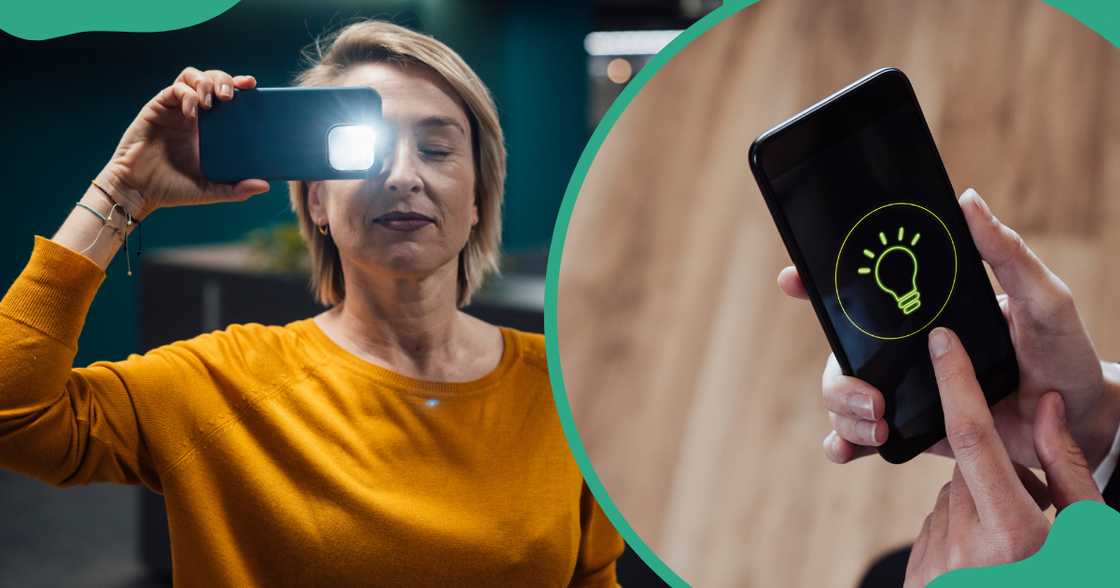
A greyed-out flashlight icon is not random. It is the system telling you the hardware is currently unavailable.
| Signal | Likely Reason |
|---|---|
| Icon greyed out only sometimes | Camera app running in background |
| Icon greyed out constantly | Low battery or power saving mode |
| Icon works but light is dim | Brightness slider set low, or failing hardware |
| Icon missing from Control Center | Removed from settings, needs to be re-added |
Understanding which pattern you are seeing helps you skip straight to the right fix instead of trying every step blindly.
Step-By-Step Fix For iPhone Flashlight Not Working
Follow these steps in order. Most people find their fix within the first three steps.
Step 1: Force Close The Camera App
Swipe up from the bottom of the screen and pause to see open apps. Swipe away the Camera app and any social apps that use the camera, then try the flashlight again.
Step 2: Turn Off Low Power Mode
Go to Settings, tap Battery, and toggle Low Power Mode off. Test the flashlight from the Lock Screen or Control Center right after.
Step 3: Restart Your iPhone
Hold the side button and a volume button until the slider appears, then slide to power off. Wait thirty seconds before turning it back on.
Step 4: Update iOS
Open Settings, tap General, then Software Update, and install any pending update. This clears many known bugs tied to hardware controls.
Step 5: Reset All Settings
If nothing else works, go to Settings > General > Transfer or Reset iPhone > Reset > Reset All Settings. This restores default configurations without deleting personal data.
Step 6: Check For Hardware Damage
Open the Camera app and try taking a photo with flash enabled. If the flash still fails to fire, the hardware itself may need repair.
Step-By-Step Fix For Android Flashlight Not Working
Android troubleshooting follows a similar logic, with a few extra steps due to manufacturer customization.
Step 1: Restart The Phone
Hold the power button, select Power Off, wait fifteen seconds, then turn it back on. This clears temporary conflicts almost every time.
Step 2: Turn Off Battery Saver
Swipe down for Quick Settings and tap the Battery Saver icon to disable it. Alternatively, check Settings > Battery for the same toggle.
Step 3: Clear Camera App Cache And Data
Go to Settings > Apps > Camera > Storage, then tap Clear Data. This resets the camera app completely and often restores flashlight function.
Step 4: Close Background Apps Using The Camera
Check recent apps for anything using the camera, such as a QR scanner or social media app. Closing these frees up the hardware for the flashlight.
Step 5: Update Your Android Software
Go to Settings > System > Software Update and install any available patch. Manufacturer updates frequently fix flashlight bugs reported after a previous release.
Step 6: Test In Safe Mode
Restart in Safe Mode to check if a third-party app is causing the problem. If the flashlight works in Safe Mode, uninstall recently added apps one by one.
Flashlight Not Working After A Software Update
It is common to notice flashlight problems right after installing a new OS update. This usually points to a temporary bug rather than permanent damage.
Manufacturers typically release a follow-up patch within a few weeks to address these bugs. In the meantime, restarting the device and clearing the camera app cache offers the best temporary relief.
Flashlight Turns On But Looks Dim Or Flickers
A dim flashlight is a different problem from one that will not turn on at all. On iPhone, press and hold the flashlight icon in Control Center to reveal a brightness slider. On Android, tap the word “Flashlight” in Quick Settings for the same option.
If brightness is already at maximum and the light still looks weak, this can indicate a failing LED or a battery that struggles to supply enough power. Flickering during calls or notifications is usually tied to LED Flash Alerts, which can be disabled in Accessibility settings.
When To Visit A Repair Shop
Most flashlight problems resolve with the software steps above. However, some signs point clearly toward a hardware issue that needs professional attention.
If the flashlight never lights up in any app, including the camera flash itself, hardware is likely at fault. Similarly, if the problem began immediately after a drop, spill, or a previous repair job, a technician should inspect the internal connector.
How To Prevent Flashlight Problems In The Future
A few simple habits reduce the chances of running into this issue again. Keeping your phone updated is one of the easiest ways to avoid known software bugs.
Avoid using thick or poorly designed cases that sit too close to the camera module. Also avoid letting your battery repeatedly drain to zero, since deep discharges can accelerate battery wear that affects power-hungry features like the torch.
iPhone Vs Android Flashlight Fix Comparison
| Factor | iPhone | Android |
|---|---|---|
| Shares hardware with camera flash | Yes | Yes |
| Common software fix | Force close Camera app | Clear Camera app cache |
| Power saving conflict | Low Power Mode | Battery Saver |
| Reset option | Reset All Settings | Factory Reset (last resort) |
| Brightness control | Long-press icon in Control Center | Tap “Flashlight” text in Quick Settings |
| Repair option | Apple Store or authorized center | Manufacturer service center |
Why Is My Flashlight Not Working On Samsung Phones
Samsung devices run One UI on top of Android, which adds its own layer of camera and power management. This means Samsung users sometimes see slightly different behavior than stock Android.
Adaptive Battery Restricting Background Access
Samsung’s Adaptive Battery feature aggressively limits apps it considers unused, and this can occasionally interfere with the torch shortcut. Disabling this feature temporarily from Settings > Battery helps confirm if it is the cause.
Edge Panel Or Bixby Routine Conflicts
Some Samsung users assign the flashlight to Bixby Routines or Edge Panel shortcuts. If these automations misfire, the torch may appear stuck. Removing the routine and using the standard Quick Settings toggle usually resolves it.
One UI Software Update Pending
Samsung frequently rolls out One UI updates that patch flashlight-related bugs reported by users. Checking Settings > Software Update ensures you are not running a build with a known issue.
Why Is My Flashlight Not Working On Google Pixel
Pixel phones run closer to stock Android, so most fixes align with the general Android steps above. However, a few Pixel-specific quirks are worth knowing.
Gesture Shortcut Not Assigned
Pixel devices let users double-tap the power button or use a back-tap gesture to trigger the flashlight. If this shortcut stops working, check Settings > System > Gestures to confirm it is still enabled.
Adaptive Connectivity Or Battery Features
Pixel’s battery management can sometimes restrict background hardware calls similarly to Samsung. Turning off adaptive battery temporarily helps isolate whether this is the root cause.
Using A Third-Party Flashlight App As A Temporary Workaround
If the built-in torch refuses to cooperate, a trusted third-party flashlight app from the Play Store or App Store can serve as a temporary workaround. These apps access the same LED hardware through a different code path, which sometimes bypasses whatever is blocking the native toggle.
This is not a permanent solution, since the underlying cause should still be addressed. But it can be genuinely useful in an emergency when you need light immediately and do not have time to troubleshoot.
Emergency Alternatives If Your Flashlight Still Won’t Turn On
Sometimes you need light right now and cannot wait for a fix. Your phone’s screen brightness turned all the way up can act as a decent substitute light source in a pinch.
Opening the Camera app and taking a photo with flash enabled is another quick test, and the resulting flash burst can help briefly illuminate a dark space. Voice assistants like Siri or Google Assistant can also toggle the flashlight through a voice command, which sometimes works even when the manual toggle appears frozen.
Flashlight Not Working After Screen Or Battery Replacement
If your flashlight stopped working right after a screen repair or battery swap, the issue is very likely related to that repair rather than a coincidence. Technicians sometimes disconnect or damage the flex cable near the camera module while working on adjacent components.
If this describes your situation, the best step is to return to the same repair shop and explain when the problem started. A reputable shop should be able to diagnose whether a connector was loosened or damaged during the original repair.
Common Mistakes People Make While Troubleshooting
A few habits can waste time or even make troubleshooting harder. Avoid downloading random flashlight apps from unofficial sources, since some contain excessive permissions or ads that create new problems.
Skipping the basic restart step is another common mistake, since a huge percentage of flashlight issues are solved by this single action alone. Finally, jumping straight to a factory reset without backing up data first can lead to unnecessary data loss when a much simpler fix was actually available.
Why This Issue Feels More Common In 2026
Modern phones pack more sensors, tighter thermal limits, and more aggressive battery optimization software than ever before. All of these systems can interact with the flashlight in ways that were less common on older, simpler devices.
At the same time, people rely on their flashlight more heavily for daily tasks like scanning documents, finding items in bags, or walking outdoors at night. This higher usage combined with more complex software is why flashlight complaints have become a frequently searched topic again in 2026.
Frequently Asked Questions (FAQs)
Why is my flashlight not working all of a sudden?
A background app using the camera or a power saving mode is the most common cause. Restarting the phone usually clears the issue right away.
Why is my iPhone flashlight greyed out?
This means the camera hardware is currently locked by another app or process. Closing the Camera app and any camera-based apps typically fixes it.
Why is my Android flashlight not turning on?
Battery Saver mode, a corrupted camera cache, or a conflicting flashlight app are the usual reasons. Clearing the camera app data solves most cases.
Can low battery stop my flashlight from working?
Yes, many phones disable the flashlight once battery drops below a set threshold. Charging the phone for a few minutes restores full functionality.
Does overheating affect the flashlight?
Yes, phones automatically disable high-power features like the flash when they get too hot. Letting the device cool in a shaded area fixes this quickly.
Will a factory reset fix my flashlight?
It often does if the cause is a deep software conflict, but it should be a last resort. Always back up your data before resetting.
Can a phone case cause the flashlight to stop working?
Yes, thick cases or magnetic accessories can physically block the LED opening. Removing the case is a fast way to test this.
Why does my flashlight work in the camera app but not from Control Center?
This usually points to a temporary glitch in the flashlight toggle itself rather than the LED hardware. A restart typically resolves this mismatch.
Is a dim flashlight a sign of hardware damage?
It can be, especially if brightness is already at maximum and the light still looks weak. It may indicate a failing LED or a struggling battery.
When should I take my phone to a repair shop for flashlight issues?
If the flashlight and camera flash both fail to work after trying every software fix, hardware repair is likely needed. This is especially true after a drop or water exposure.
Conclusion
Flashlight problems on Android and iPhone almost always trace back to a handful of familiar causes: a background camera app, a power saving mode, overheating, low battery, or an outdated software version.
Working through the steps in this guide, starting with the simplest ones like closing the camera app or restarting the phone, resolves the issue for most people within minutes.
If you have tried every software fix and the flashlight still refuses to turn on, especially alongside a non-functional camera flash, it is time to consider a hardware problem.
At that point, a visit to an authorized repair center is the safest next step rather than continuing to experiment with settings.
Keeping your phone’s software updated, avoiding thick cases near the camera module, and not letting your battery repeatedly hit zero will help you avoid running into this frustrating issue again in the future.